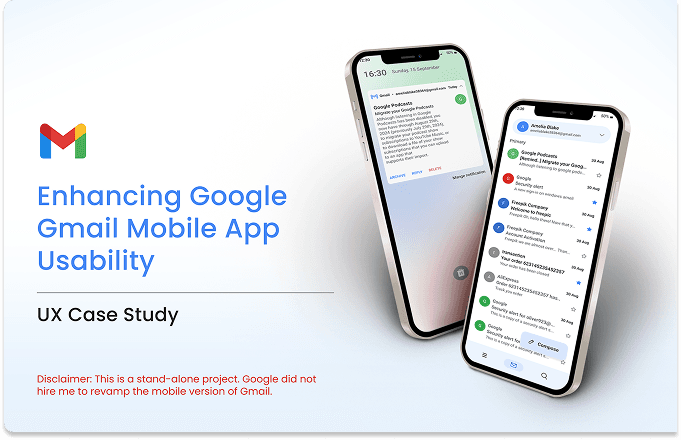
Disclaimer: This is a stand-alone project. Google did not hire me to revamp the mobile version of Gmail.
Project Overview
Project Duration: 4 weeks
Platform: Native Android
Tools: Figma, Photoshop, Camtasia
Introduction
Google Gmail is the most widely used email service by the most people around the world. The app is providing variety of features to enhance the email management among the users. Gmail mobile app focus on delivering effective, flawless and smooth user experience to users who are using the app regardless of their georgical location. Since the continues increment of broad user based of the Gmail, it is important improve the user experience and the user interface to keep up with changing user needs and preferences.
Problem
Regardless of the Gmail popularity, it holds several UI/UX challenges which need to be address for increase the better performance of the app. In addition to that there severity problems which can directly affect to user satisfaction and efficiency. Below challenges are discuss in this case study.
- Complex Navigation between accounts
- Unproductive filtering option
- Limited customizable option to organize the app interface and functionalities
- User have less user control over application
Project objective
The objective of the case study is to address the identified problems and increase the overall user experience for the better performance of the Gmail mobile app. Specified project objective are include as below.
Favorable outcomes which expected in the end of the case study
By measuring increase user ratings in play Store, measuring the user drop-offs and app uninstalls can show the impact of this case study.
In this case study, I applied Stanford University’s Design Thinking methodology to enhance the usability of the Google Gmail mobile app. The iterative, user-centered approach guided me through the following stages:
- Empathize:
I started by conducting user research to understand the challenges Gmail users face, especially when interacting with the mobile app. This involved analyzing user feedback, reviewing app store reviews, and engaging with target users through surveys and interviews.
- Define
Based on the research, I identified key pain points, such as difficult navigation, cluttered interfaces, and a lack of accessibility features. The main challenge was to streamline the app’s layout and improve user experience (UX) without overwhelming users.
- Ideate
During this phase, I brainstormed multiple solutions, exploring different layouts, features, and functionality. I used wireframing and low-fidelity prototypes to visualize these ideas and collaborated with users to gather feedback.
- Prototype
I developed high-fidelity prototypes, focusing on the most promising design solutions. These prototypes showcased new, simplified navigation patterns, customizable notification settings, and improved inbox organization.
- Test
The final stage involved usability testing with real Gmail users. Their feedback helped refine the design and ensure that changes were not only visually appealing but also functional and intuitive.
Research Goal
User research goal mainly categorize into main 3 parts. Those are,
- User behavior
- User pain points
- Solution and Prototype
User behavior
To understand the user behavior there 2 main research method has followed in this case study. They are,
- First research method has conducted using google survey by sharing among 20 users who currently using the google Gmail mobile app in native android devices.
- Second research based on, most relevant and most-voted customer reviews on Play Store (1.5k+ upvotes in total) from June 2024 — September 2024
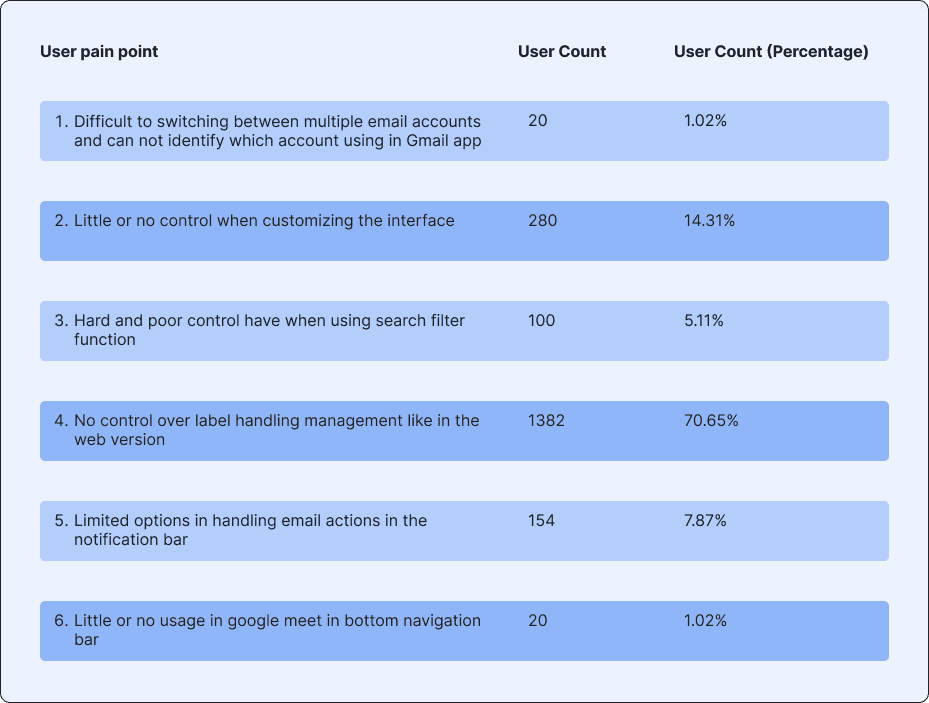
Through this case study 6 broad issues discuss which found through the research. The identified pain point were disused in below sections.
User pain points
- Difficult to switching between multiple email accounts and can not identify which account using in Gmail app
- Little or no control when customizing the interface
- Hard and poor control have when using search filter function
- No control over label handling management like in the web version
- Limited options in handling email actions in the notification bar
- Little or no usage in google meet in bottom navigation bar
We will talk about the above mention specifics pain points in depth in the below solution/ redesign sections.
Below table include quantitative analyses of user pain points.
Competitive Analysis
Before dive into the solution let’s talk about 3 other competitors of how they able to handle the same problem, which we are going to solve.
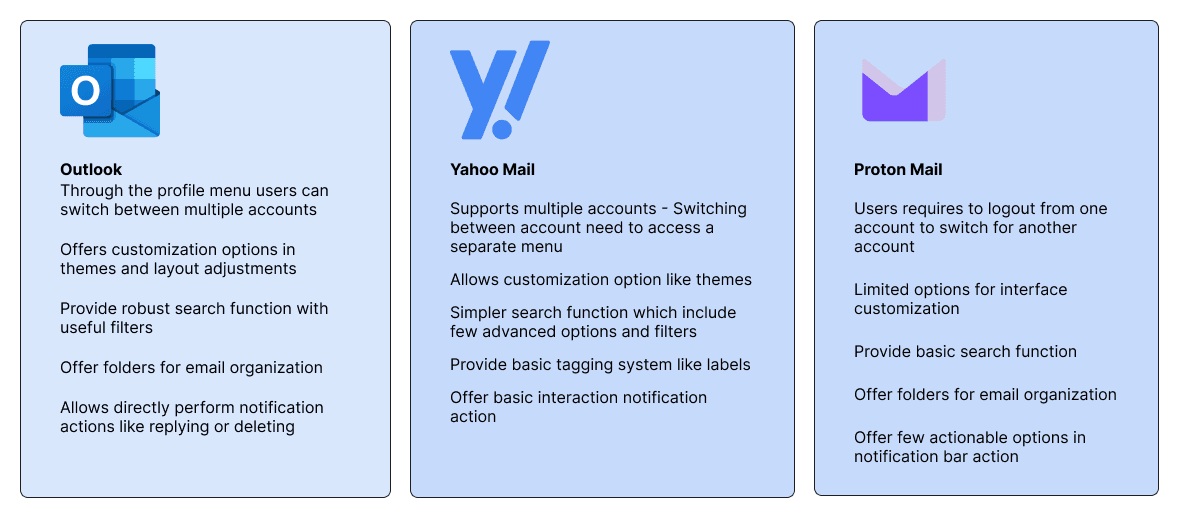
Gmail’s account switching, interface customization, search functionality, and label management features leave its competitors behind which makes it the best out of the rest of the above competitors.
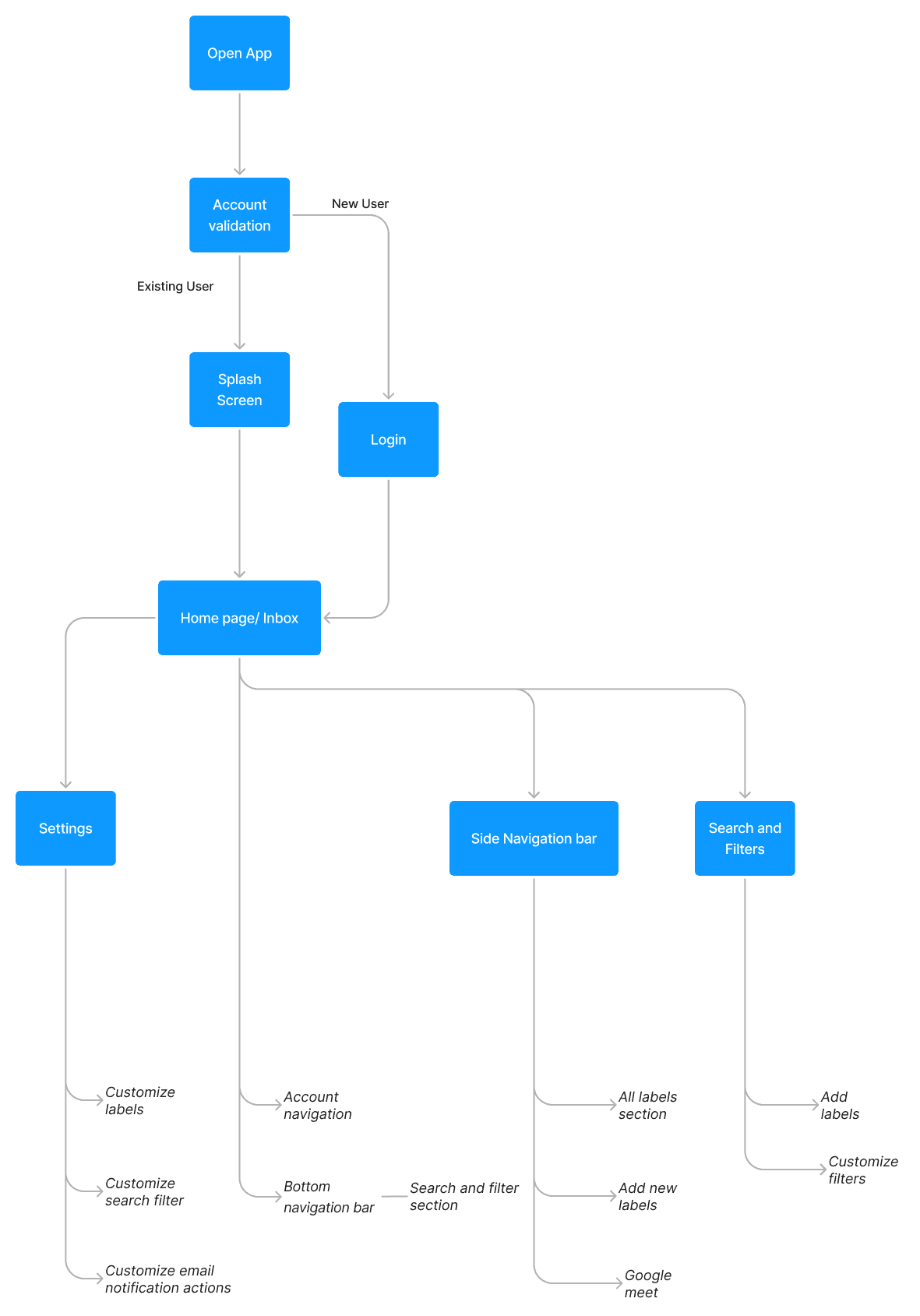
Simplified User Flow
Our user flow for the Gmail mobile app is intended to evolve and improve the user experience. This user flow maps out how users will navigate the app, from managing emails to taking advantage of a variety of additional features like Google Meet. It helps to address potential pain points and allows us to focus on user-friendly navigation. The user flow informs design and development, to make sure teams and their stakeholders would love to use app. Additionally, the proposed user flow covers the way for a more efficient and user-satisfactory email experience.
Solution & Prototypes
Based on the analysis of user insights/ user research along with competitor features, potential solutions to the six pain points identified for the Gmail app, I have suggest the following suggestions to enhance the app experience. Before I start this section I like to mention that, I have try to design the new UI suggestions, align with the existing app user interface and I had try my best to followed the app’s current design system and style.
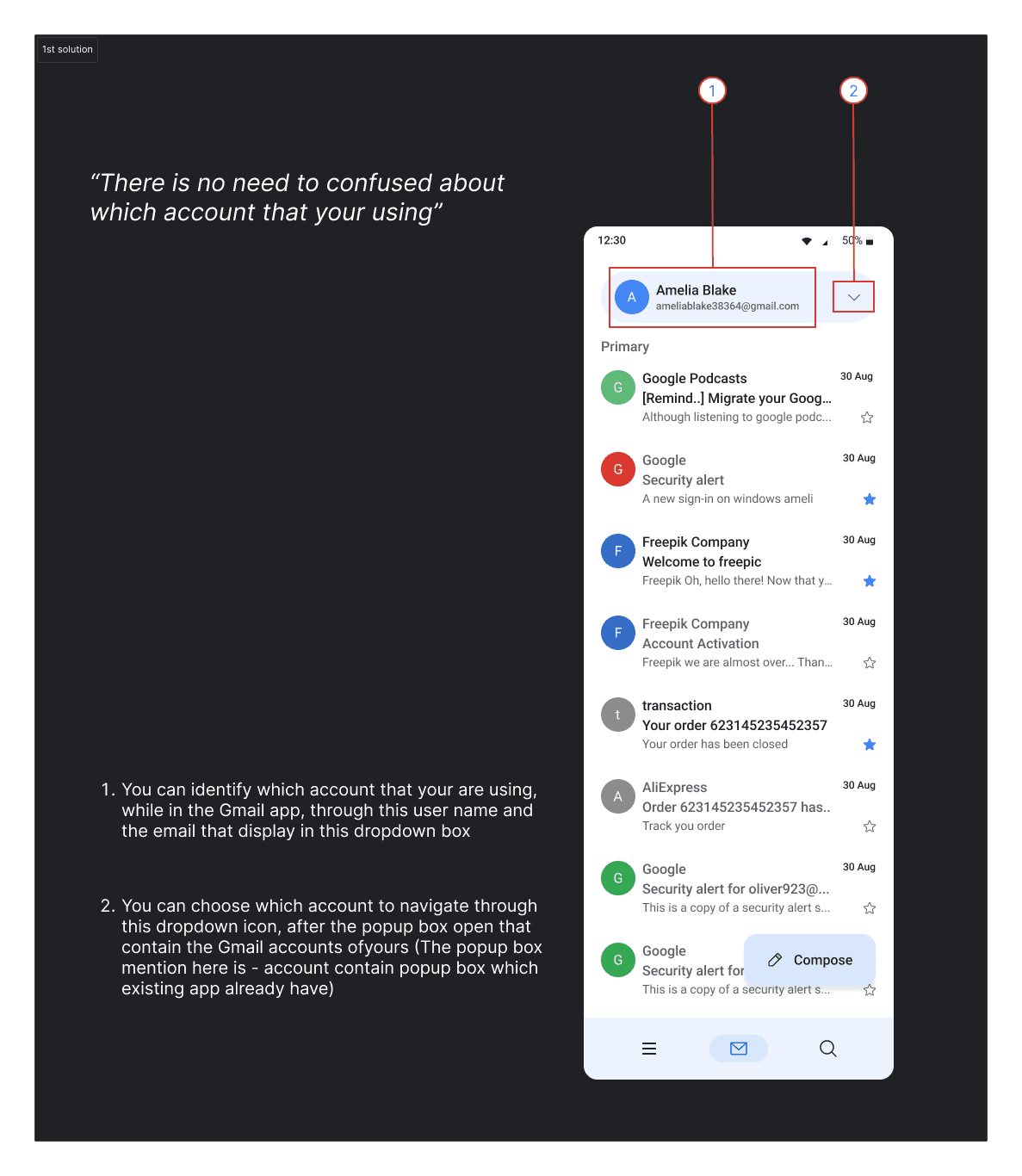
1. Gives more reliable way to navigate between user account and identifying user accounts
Existing design — To navigate between several account in Gmail mobile app, user have to tap on the profile icon and select the account that user need to navigate and also not clear about which account user using, while user going through the app.
Proposed design — To identify the google account through the app while using it, we proposed 2 options for better Gmail account handling.
- Display the User name and email in the top of the page — This will help the user to identify what the account they using, when they in the Gmail app.
- Display dropdown arrow for user to identify the that they need to select it, if they want to navigate to another account.
2. Give more user control to handle the labels in side navigation bar
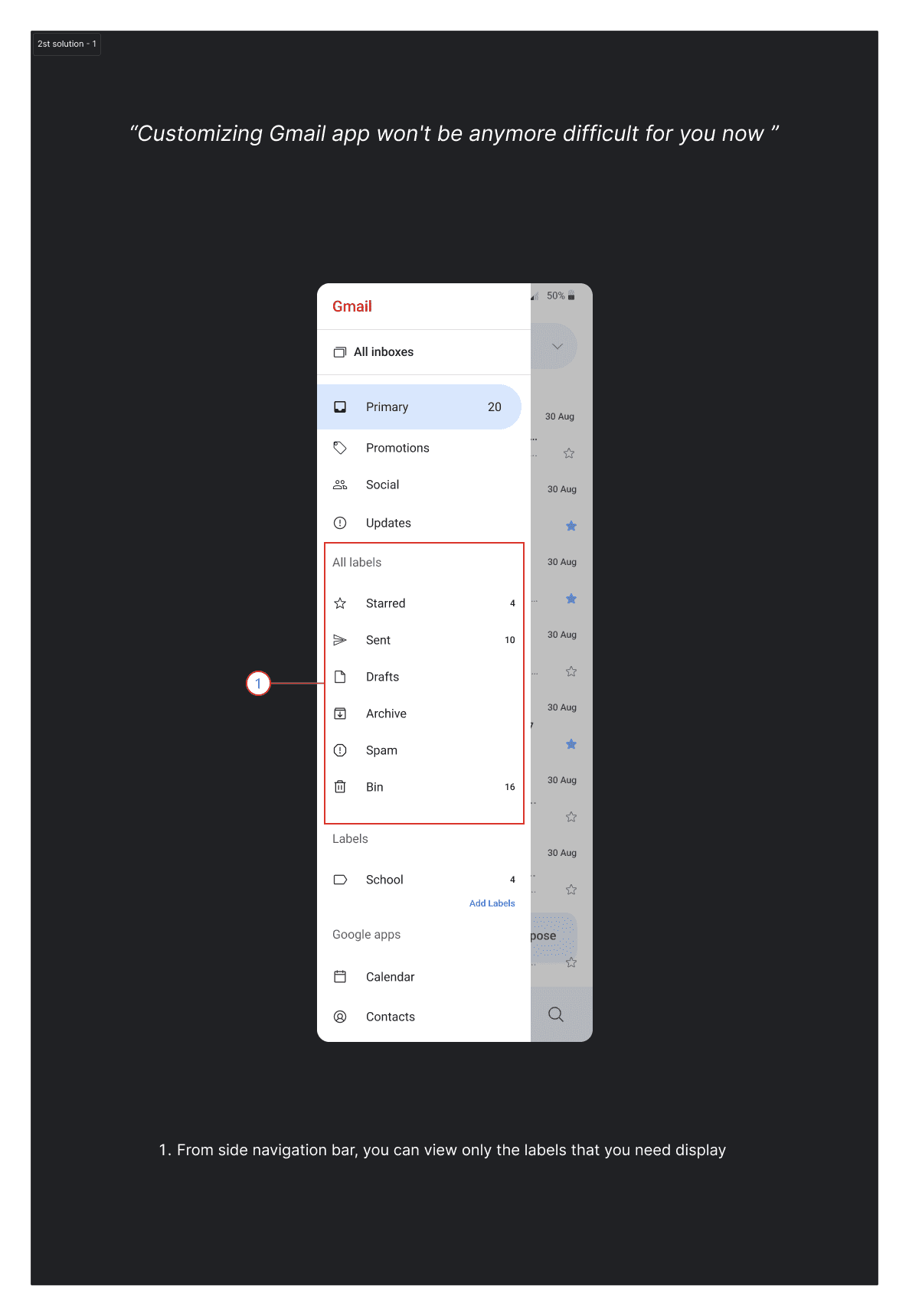
Existing design — All labels that you have for the Gmail account will be displayed in side navigation bar, which can be open through menu icon. All the labels and custom labels are which create through web view, display here. Beside that Archive label also missing from the side navigation bar.
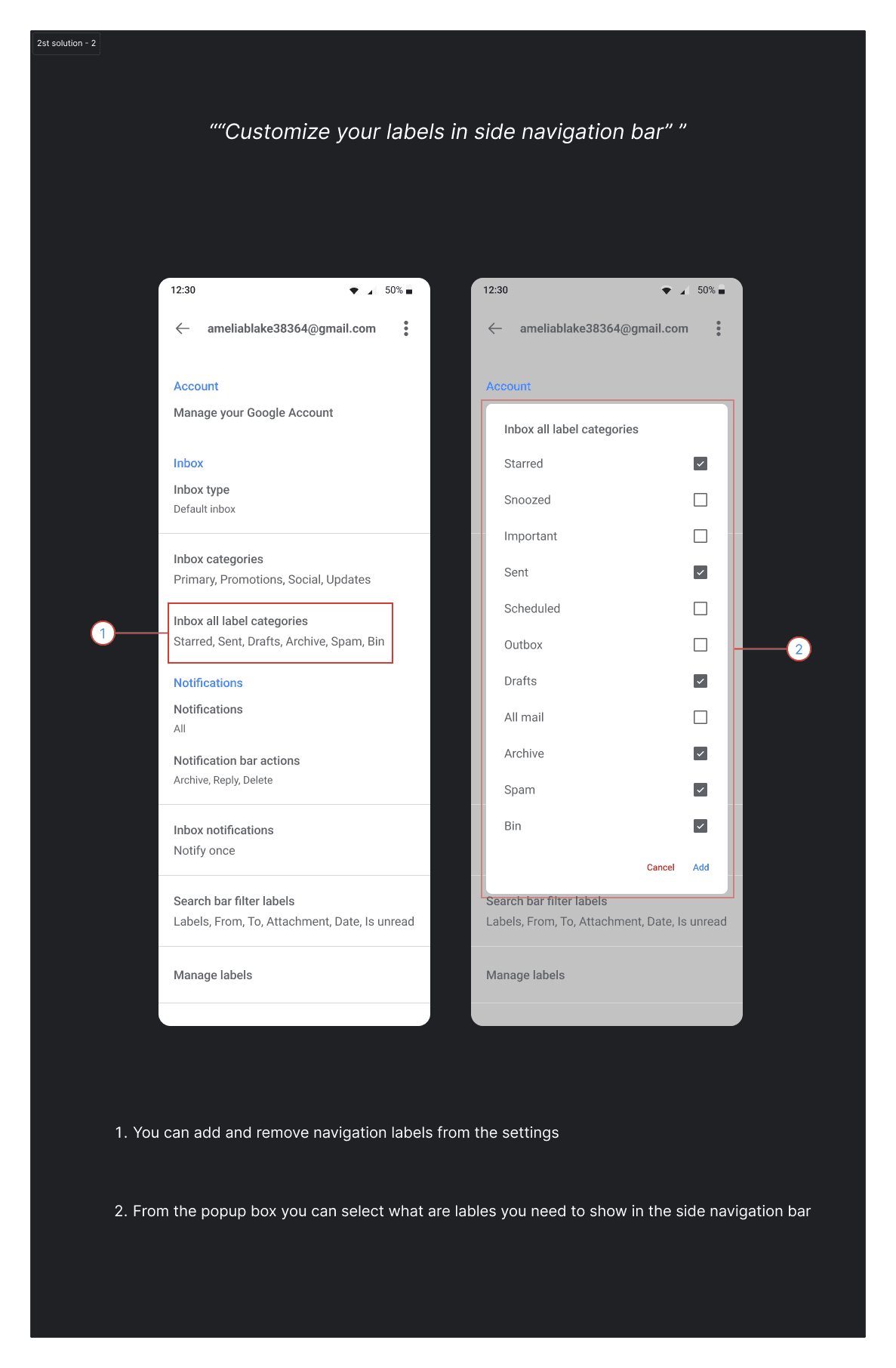
Proposed design — Make label more customize we proposed 2 modifications, They are,
- User can view the labels; that user only need to view under the ‘All labels’ title, including Archive label
- Using the settings user can choose what are the labels that need to included under in ‘All labels’ title, side navigation bar
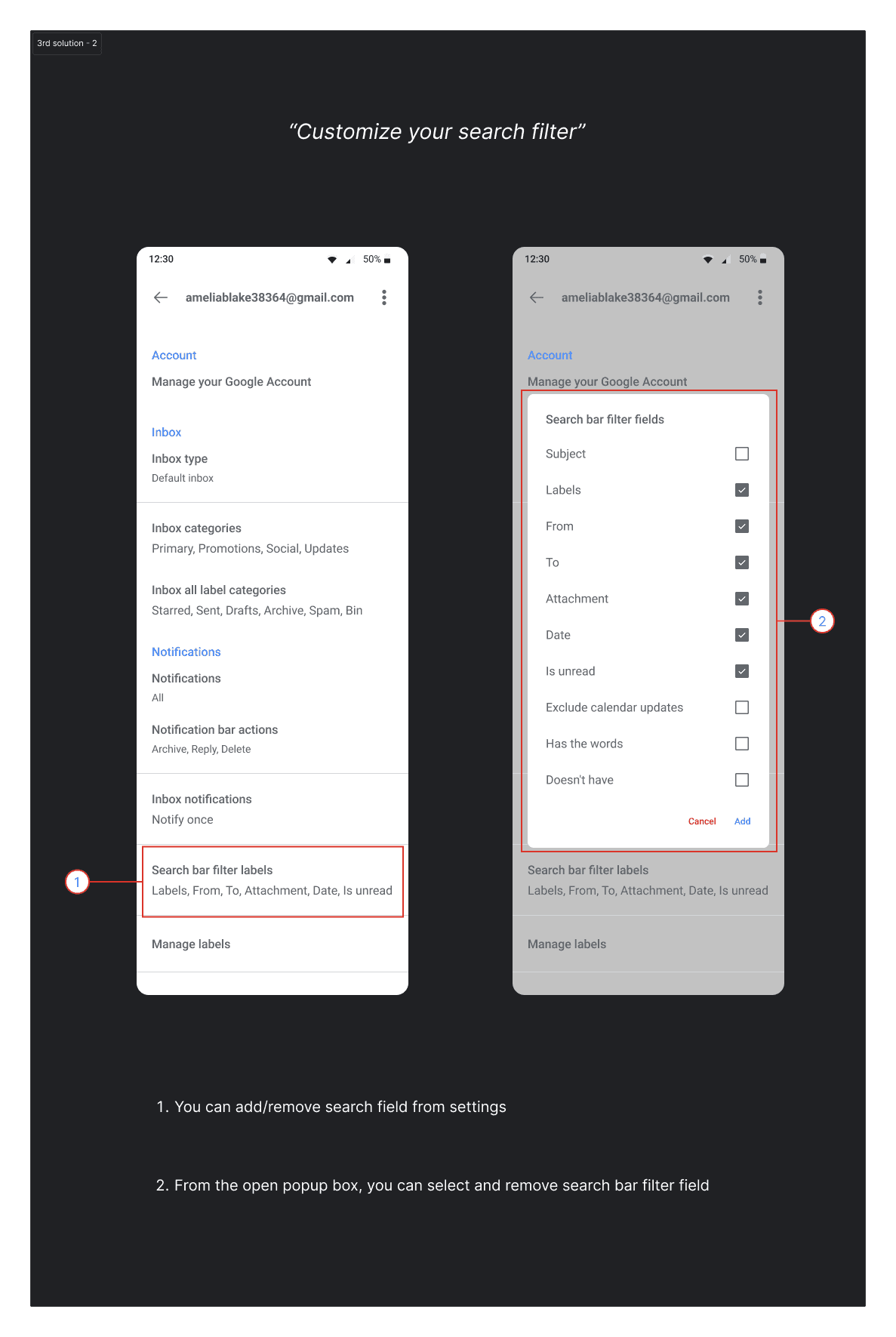
3. Empower the search experience from robust search filter
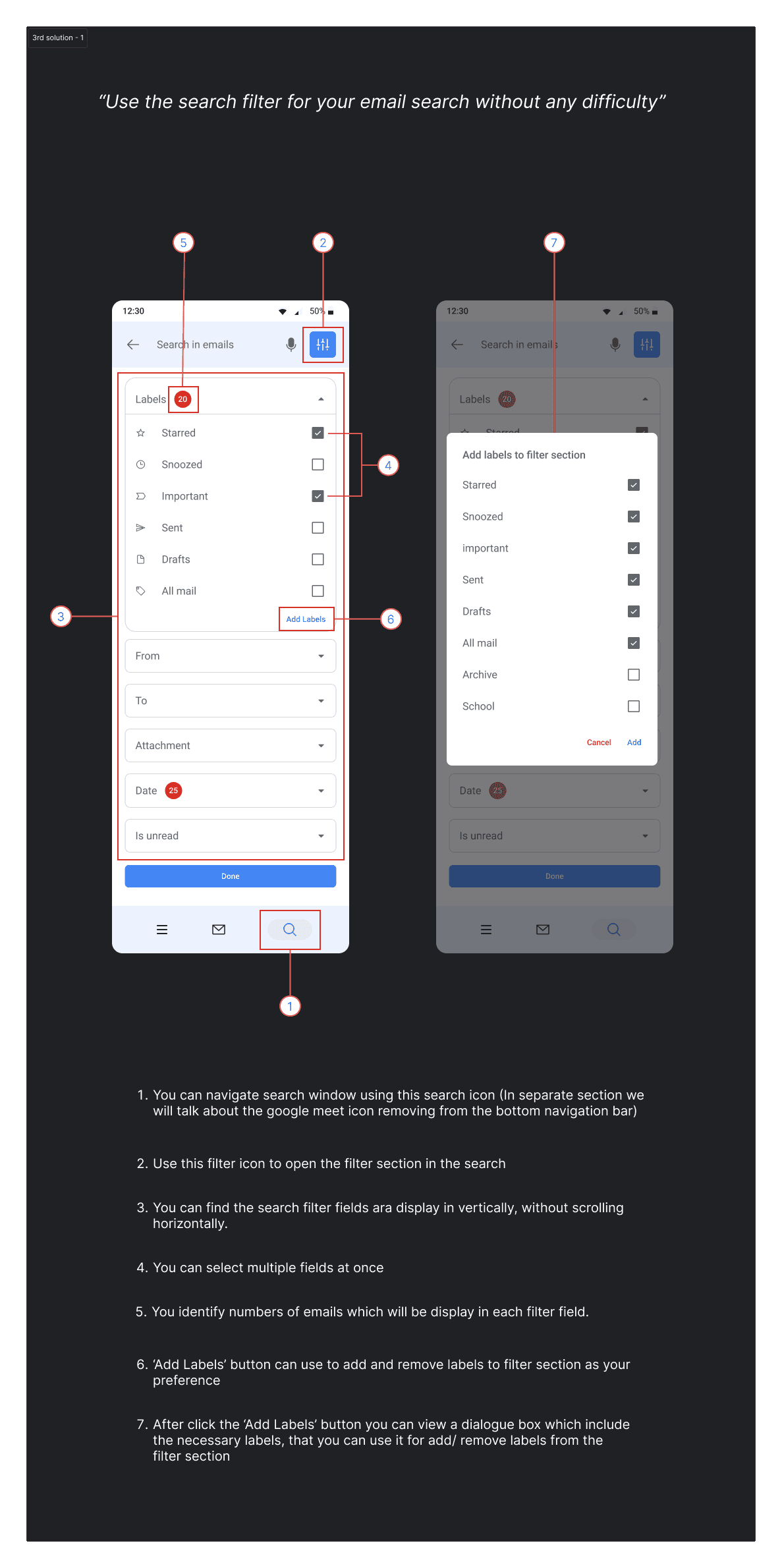
Existing design — The search bar is appears at the top of the page. When user enter search text, Gmail has provide basic filtering option which appears in horizontally that user need to scroll horizontally.
Proposed design — To improve the search filter option we proposed 4 enhancements.
- Add separate page for search/ filter option from the bottom navigation bar
- Add filter icon to separate filter section in the search bar
- Include Custom Add labels section to add filter section labels to search filter instantly.
- User can add custom search filter fields to the filter section from the settings.
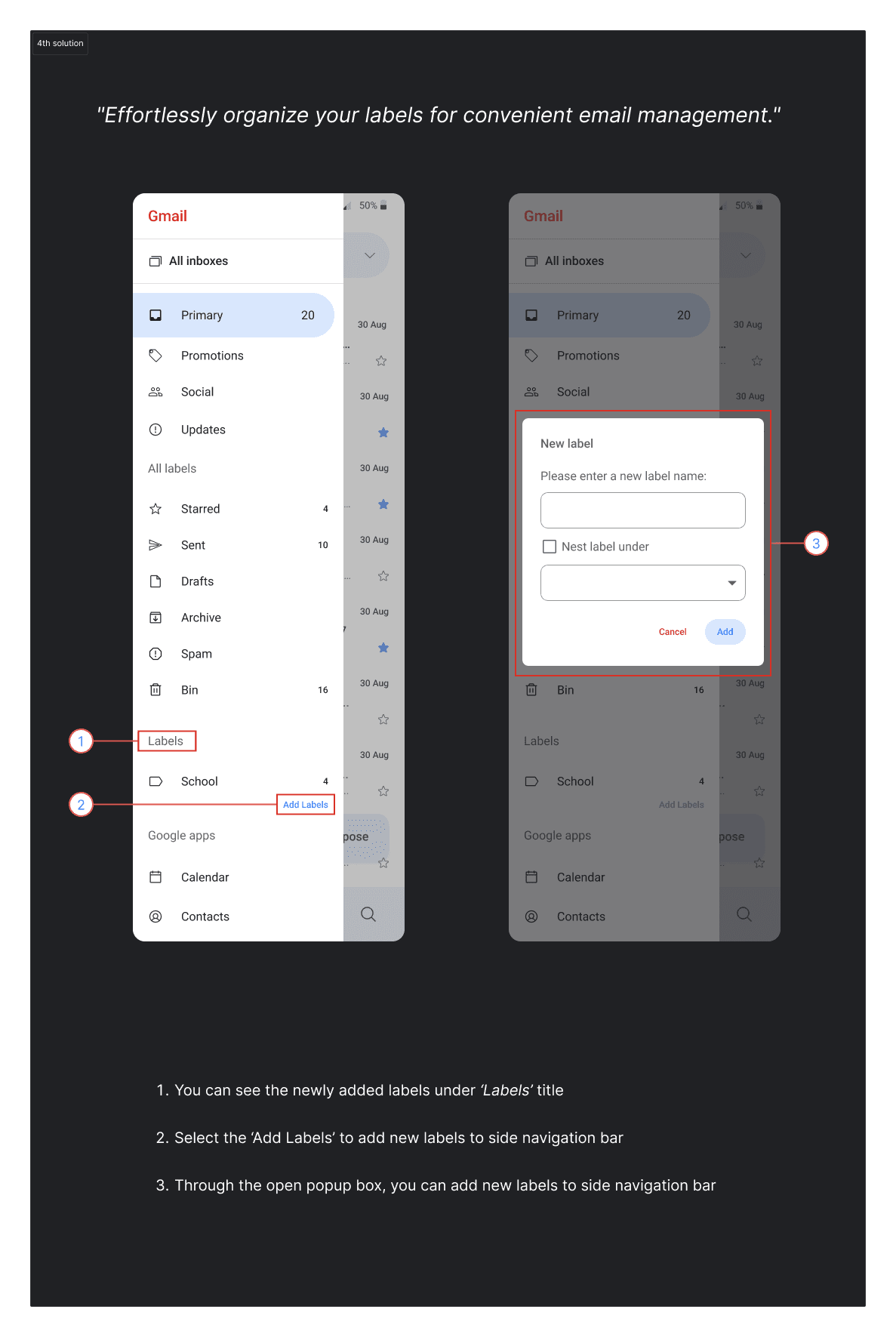
4. Enhance and Increase the control over label handling management like in the web version
Existing design — There is no label handling management for create, organize or label creating under parent folder like in the web version.
Proposed design — we proposed 3 enhancements increase the label handling management.
- Add new separate section add to newly created labels
- ‘Add Labels’ button to add new label to side navigation bar
- Include popup box to add new label like in web version of Gmail
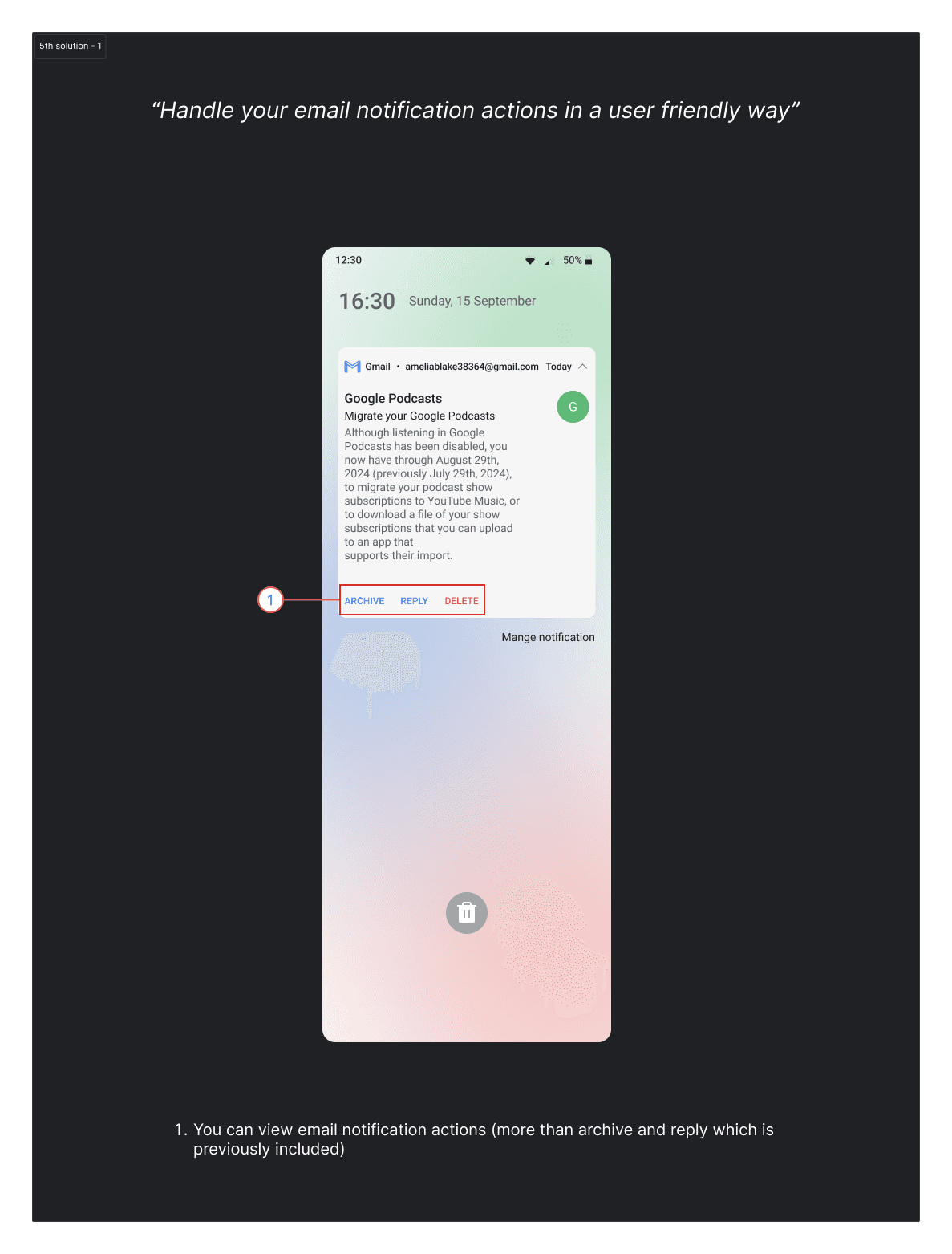
5. Expand the opportunity of handling email actions in the notification bar
Existing design — When the new email came to the mobile phone, notification section of the android device display the Gmail’s notification which includes, quick-action buttons, like “Archive”, “Reply”.
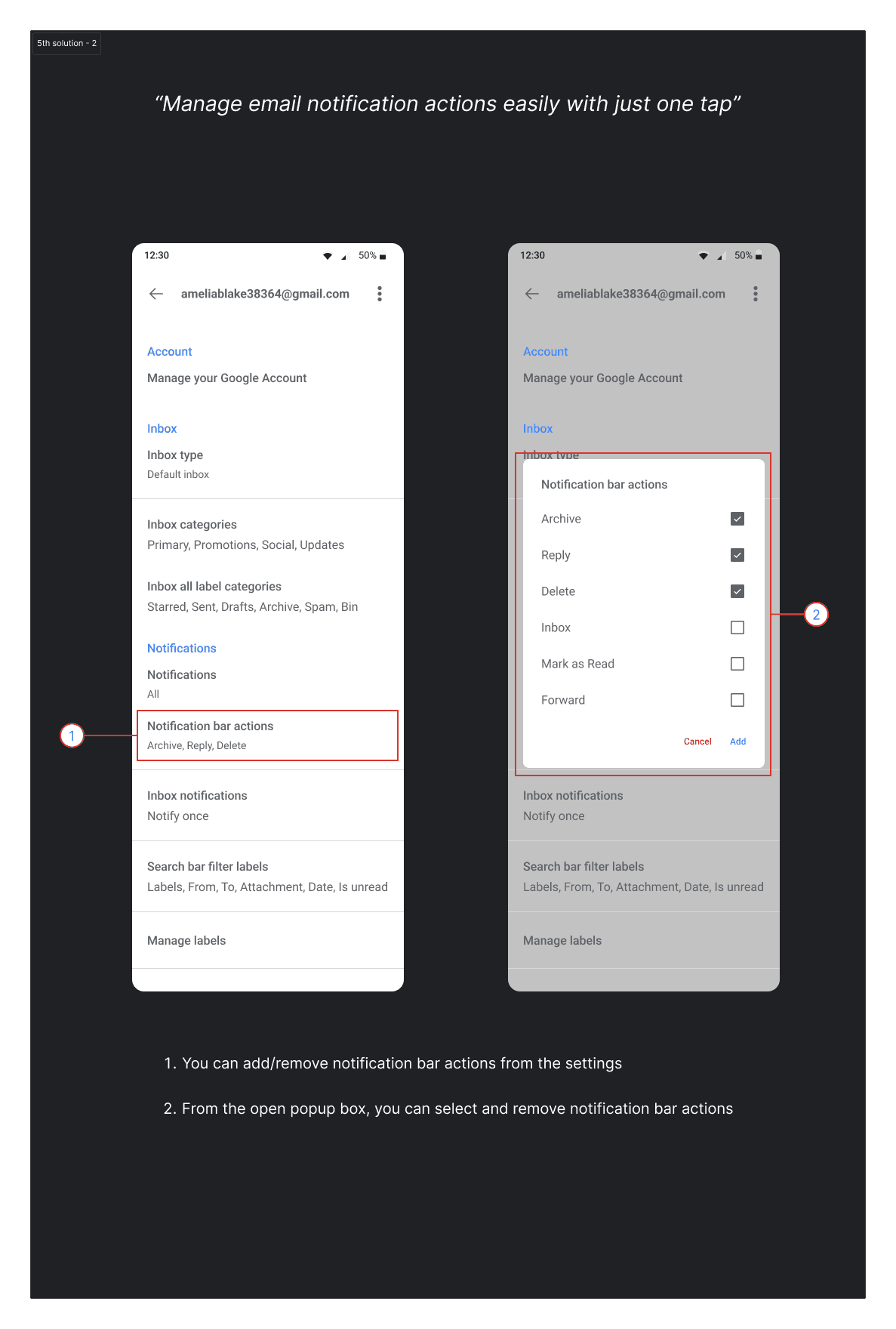
Proposed design — we proposed 2 new features to increase the user experience of the user.
- Include new actions in the Gmail’s notification action part(example: Delete)
- In settings included new section, to add custom Gmail’s notification action options, according to the user preference.
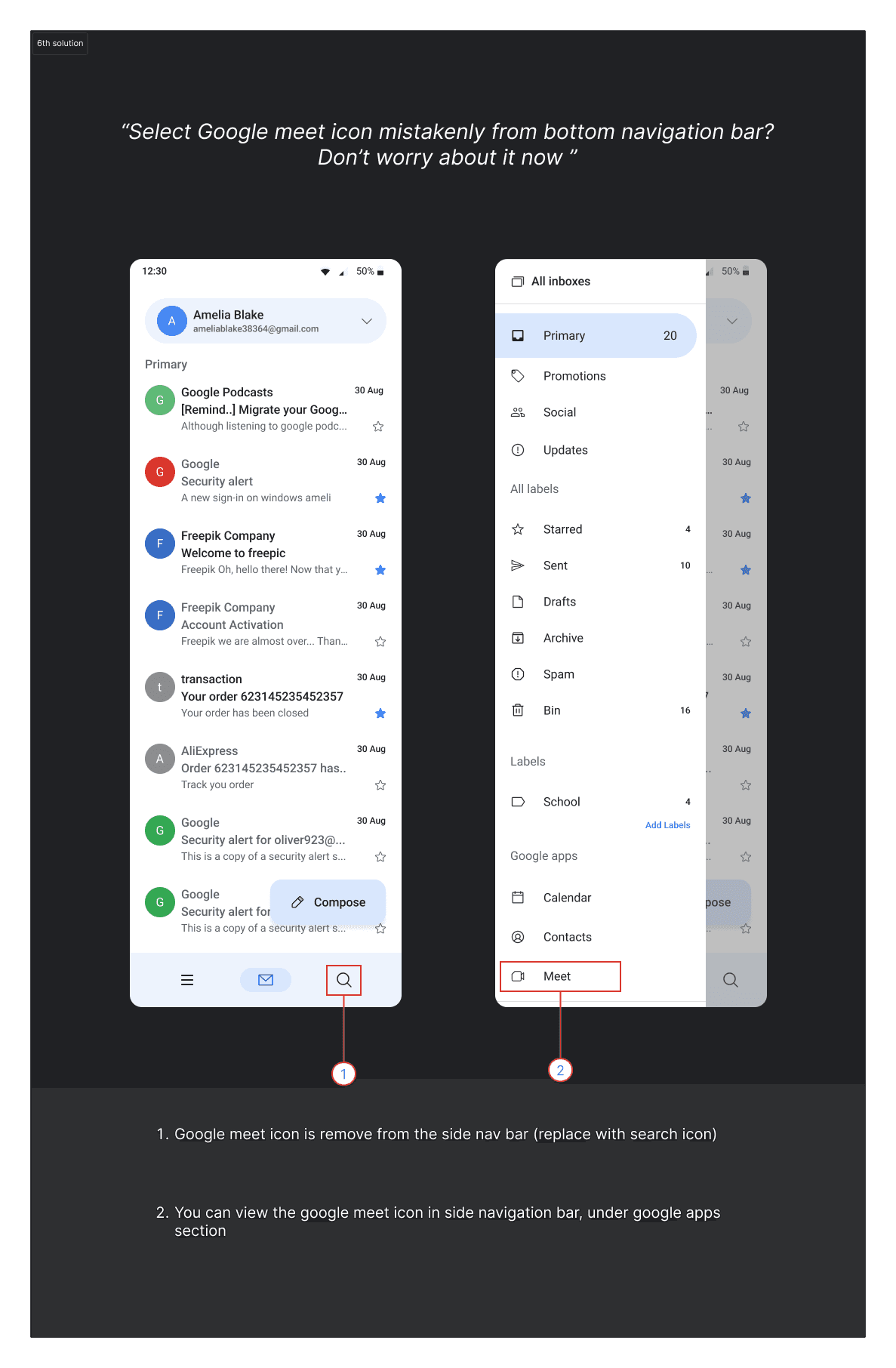
6. Provide user friendly approach to google meet icon in bottom navigation bar
Existing design — Google meet icon display in bottom navigation bar along with the mail tab. Accidentally navigate to Google meet tab or little use in this feature through this app, will cause hug impact on user experience.
Proposed design — we proposed 2 new features to include in new UI design
- Remove the Google meet icon bottom navigation bar
- Include the google meet icon on side navigation bar, under Google apps section
Insights & Conclusion
This case study presented a detailed examination of the user interface design for controlling labels, filters, and other essential capabilities in the Gmail mobile app.
This research revealed several crucial insights
- Efficient Label Management:
The current design provides for intuitive label handling, giving users a clear structure for categorizing and finding emails quickly. However, minor modifications could improve the user experience even further.
- Search Filters Optimization:
The search filters are strong, but they might benefit from more visual clarity to help consumers identify features without misunderstanding.
- Google Meet Integration:
While the seamless integration of Google Meet in the bottom navigation improves the app’s multifunctionality, it may confuse the user if they navigate between tabs accidentally.
- Opportunities for Improvement:
Certain activities can be streamlined and the number of taps required to access critical features reduced, improving user productivity, especially in high-traffic email situations
Future design enhancements should focus on simplifying navigation while retaining the broad feature set, ensuring that Gmail remains a powerful communication tool for both personal and business purposes.
And that concludes the case study. Thank you for being patient!
Thank you for your thoughtfulness and generosity!
Check out my Behance post about this case study:
https://www.behance.net/gallery/209332519/Case-Study-Enhancing-Google-Gmail-Mobile-App-Usability